Thermal ticket printers in parking facilities produce tickets 24 hours a day, in outdoor or semi-outdoor environments, at temperatures from below freezing to over 100°F. A printer that fails during peak hours means queuing at the entry lane, manual intervention, and customer frustration. Yet printer maintenance is often the least systematized aspect of parking equipment upkeep.
Thermal printers are mechanically simpler than impact printers or laser printers — there’s no ink, no toner, no ribbon, and no complex paper path. The primary maintenance items are the print head, the feed rollers, and the paper supply. A consistent maintenance program addressing these three components keeps most thermal printers operating reliably for 5–10 years.
How Thermal Ticket Printers Work
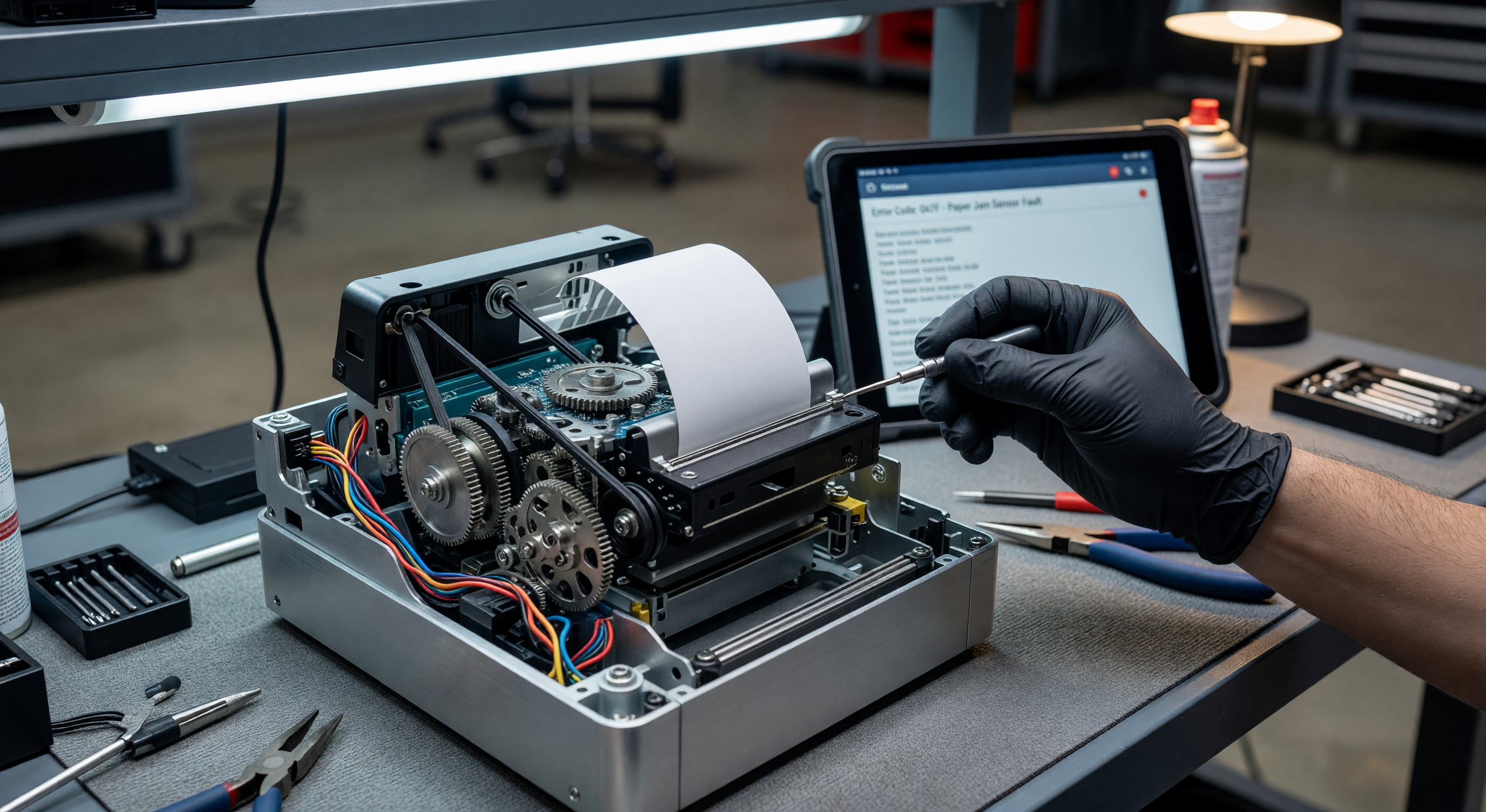
Understanding the mechanism guides effective maintenance. Thermal printers use a print head containing a row of tiny heating elements (dots) that are selectively energized to create dark spots on heat-sensitive paper. The paper is driven through the print zone by a platen roller; friction between the paper and the platen maintains registration.
No ink is involved. The print quality depends entirely on:
- The thermal paper’s heat sensitivity and uniformity
- The print head’s element condition and contact with the paper
- The platen roller’s surface condition and contact pressure
- The paper path being free of debris and contaminants
Preventive Maintenance Schedule
Weekly
Paper level check: Check paper roll remaining diameter. Set a minimum diameter for roll replacement based on your transaction volume — running out of paper during peak hours is avoidable. Most 4-inch diameter rolls hold 150–300 feet of paper depending on ticket length and paper grade.
Ticket output inspection: Examine 5–10 tickets from the output for:
- Print density uniformity across the ticket width (faded stripes indicate failing print head elements)
- Barcode or QR print quality (scan a test ticket to verify readability)
- Clean cut edges (ragged edges indicate cutter wear or misalignment)
- Correct ticket format (verify the correct data is printing in the correct positions)
External cleaning: Wipe the ticket exit slot with a clean, dry cloth. Debris accumulation at the ticket exit can cause tickets to jam at the exit point.
Monthly
Print head cleaning: This is the most important thermal printer maintenance step. Print heads accumulate adhesive deposits from paper backing, dust, and environmental contamination that reduce print quality and thermal conductivity between the head elements and the paper.
Procedure:
- Power down the printer
- Open the print cover to access the print head and platen
- Using a cleaning card (pre-moistened with IPA, specifically designed for thermal printers) or a cotton swab lightly moistened with 70% IPA, wipe the print head element surface once in the direction of paper travel
- Do not scrub back-and-forth — pull across the element in one direction
- Allow the IPA to evaporate completely before closing the cover (30–60 seconds)
- Run a self-test print to verify print quality
Never use paper clips, sharp objects, or abrasive materials on the print head — the heating elements are fragile and are damaged by mechanical contact.
Platen roller cleaning: The platen roller accumulates adhesive from paper backing and contaminants from the environment.
Procedure:
- With the printer open (print cover removed or opened), wipe the platen roller surface with a lint-free cloth lightly moistened with IPA
- Rotate the platen manually while wiping to clean the full circumference
- Inspect the roller surface for flat spots, embedded debris, or surface damage that would affect roller contact
Paper path cleaning: Using compressed air (low pressure, 20–30 PSI) or a dry brush, clear the paper path of dust, paper dust, and any debris. Pay attention to the area around the cutter if the printer has an integrated cutter.
Cutter inspection (if applicable): Printers with integrated cutters have a blade mechanism that cuts each ticket after printing. Inspect the cutter for paper debris accumulation and clean with a dry brush. The cutter blade typically doesn’t require lubrication; check manufacturer guidance for your specific model.
Quarterly
Full paper path inspection: Disassemble accessible paper path components and clean thoroughly. Check all sensors in the paper path (paper-out sensor, ticket-present sensor, jam sensors) for contamination — dirty sensors cause incorrect error conditions.
Roller pressure verification: The contact pressure between the print head and platen roller determines print density and paper tracking. If print quality has degraded despite clean head and paper, verify that the spring mechanism maintaining print head pressure is intact and providing correct force.
Print head resistance check: Measure the resistance of the print head element array using the manufacturer’s diagnostic mode or with a multimeter across the head terminals. Resistance values should be within the manufacturer’s specified range. Resistance outside specification indicates element failure and warrants head replacement.
Print Quality Troubleshooting
Faded or Light Print Overall
Most likely causes:
- Dirty print head — clean and retest
- Low print energy setting — check printer configuration
- Paper loaded upside down (printing on the non-sensitive side) — verify paper orientation
- Print head not making full contact with paper — check platen pressure
Faded Stripe or Missing Characters
Most likely causes:
- Failed print head elements — individual elements in the heating array have burned out
- Debris on the print head along the stripe location — clean the head specifically at the problem location
Failed elements can sometimes be managed by increasing print density or font size temporarily, but element failure typically progresses over time. Plan print head replacement when significant element failures appear.
Paper Jams
At entry (paper not feeding):
- Check roll orientation and paper path routing
- Inspect the feed rollers for debris or glazing that reduces grip
- Verify paper weight is within the printer specification (off-spec paper can fail to feed)
During printing (jam in print zone):
- Clear the jam by opening the print cover and removing the stuck paper
- Inspect for cause: fold in the paper, foreign debris, or platen roller issue
At cutter or exit:
- Clear the jam and inspect the cutter mechanism for debris or blade alignment issue
- Inspect the exit guide for damage or misalignment
Important jam clearing procedure: Never pull jammed paper against the print direction. Open the cover and remove the paper in the direction of paper travel, or manually reverse the roller to back the jam out. Pulling against print direction can damage the print head or platen roller.
Barcode Not Scanning
Printed barcodes that won’t scan are a significant operational problem because parking system integration depends on readable tickets.
Diagnostic steps:
- Verify print density — barcodes require higher contrast than text
- Clean the print head — even slight head contamination reduces bar resolution
- Verify paper quality — low-quality thermal paper with inconsistent heat response produces barcodes with variable bar width
- Check for bar width issues — scan with a barcode analysis app to verify bar width conformance
Print Head Replacement
Print head replacement is the major maintenance cost for thermal printers. Print heads are rated in kilometers of paper printed or millions of lines printed.
When to replace:
- Multiple adjacent failed elements that can’t be managed operationally
- Print density inadequate even at maximum energy setting after cleaning
- Physical damage to the element surface (visible from inspection)
Print head replacement procedure: Print heads are model-specific — verify compatibility before ordering. Installation typically involves:
- Accessing the head assembly (varies by printer model)
- Disconnecting the head connector cable
- Removing the mounting screws and lifting out the head
- Installing the new head in reverse order
- Running the printer’s calibration procedure after head replacement (required for some models)
Frequently Asked Questions
How long does a thermal print head last in a parking ticket printer? Print heads are rated for 50–150 km of paper length printed, or equivalently 30–100 million lines printed. At 100 tickets per day with a 30-line ticket format, that’s 3 million lines per year — giving a 10–33 year theoretical head life. In practice, head contamination and physical wear often require replacement in 5–10 years.
What thermal paper grade should we use? Use only paper meeting or exceeding the printer manufacturer’s specification for heat sensitivity and paper weight. Off-spec paper causes premature print head wear and increased jam rates. Cheap bulk thermal paper is rarely cost-effective when maintenance and downtime costs are factored in.
Can we use generic cleaning cards for print head maintenance? IPA-saturated cleaning cards designed for thermal printers are largely interchangeable across brands. Verify that the cleaning solution is IPA-based; avoid cards using other solvents that can damage print head coatings.
Why does the print quality degrade during hot weather? Thermal paper’s heat sensitivity is temperature-dependent. On hot days, ambient temperature primes the paper closer to activation temperature, and the print head requires less energy to produce a print. Some printers compensate with automatic energy adjustment; others produce over-dark prints in heat that fade over time. This is primarily a paper selection issue — papers with appropriate temperature-activation specifications perform more consistently across temperature ranges.
Key Takeaway
Thermal printer maintenance reduces to three things: clean the print head monthly, maintain paper supply, and clear jams promptly and correctly. These three practices prevent the majority of printer failures in parking facilities. The print head is both the most critical and the most frequently neglected maintenance item — prioritize it.